|
NEW EMAIL ACCOUNT
|
|
Support / EMail Support / Outlook Express / New Account ------------------------------------------------------------------------ i. Open up Outlook Express and open the 'Internet Accounts' dialog box: Tools > Accounts...  ii. Click 'Add' then click 'Mail...'.  iii. This will start the Internet Connection Wizard. Enter your Name. This will appear in the 'From' field on your EMails. Click 'Next'. 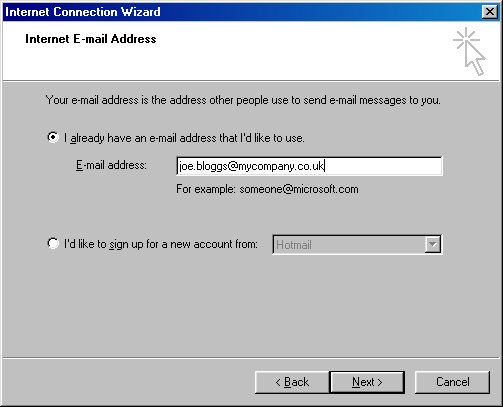 iv. Enter the EMail address you wish to use to send EMails from. Click 'Next'.  v. Enter your POP3 & SMTP servers. These are both MAIL.ITSASCREAM.COM Click 'Next'.  vi. Enter your POP3 user name & password you have been issued. Ensure 'Log on using Secure Password Authentication (SPA)' is NOT selected. Click 'Next'.  vii. Click 'Finish'.  viii. Select the newly created account and click 'Properties'. 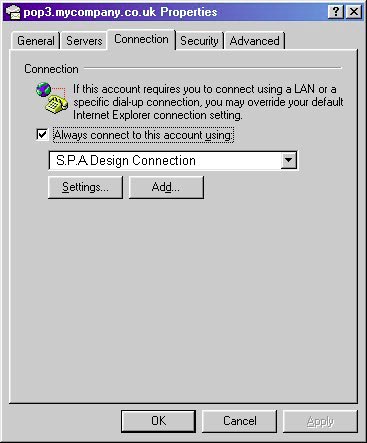 ix. Ensure our dial-up is selected from the list displayed on the 'Connection' tab. To use a dial-up other than ours please see Using an alternative dial-up. The EMail account is now set up. To add more accounts simply repeat the process again. ------------------------------------------------------------------------ support @itsascream.com or or TELEPHONE (UK ONLY) on 0870 2255 669 |
|